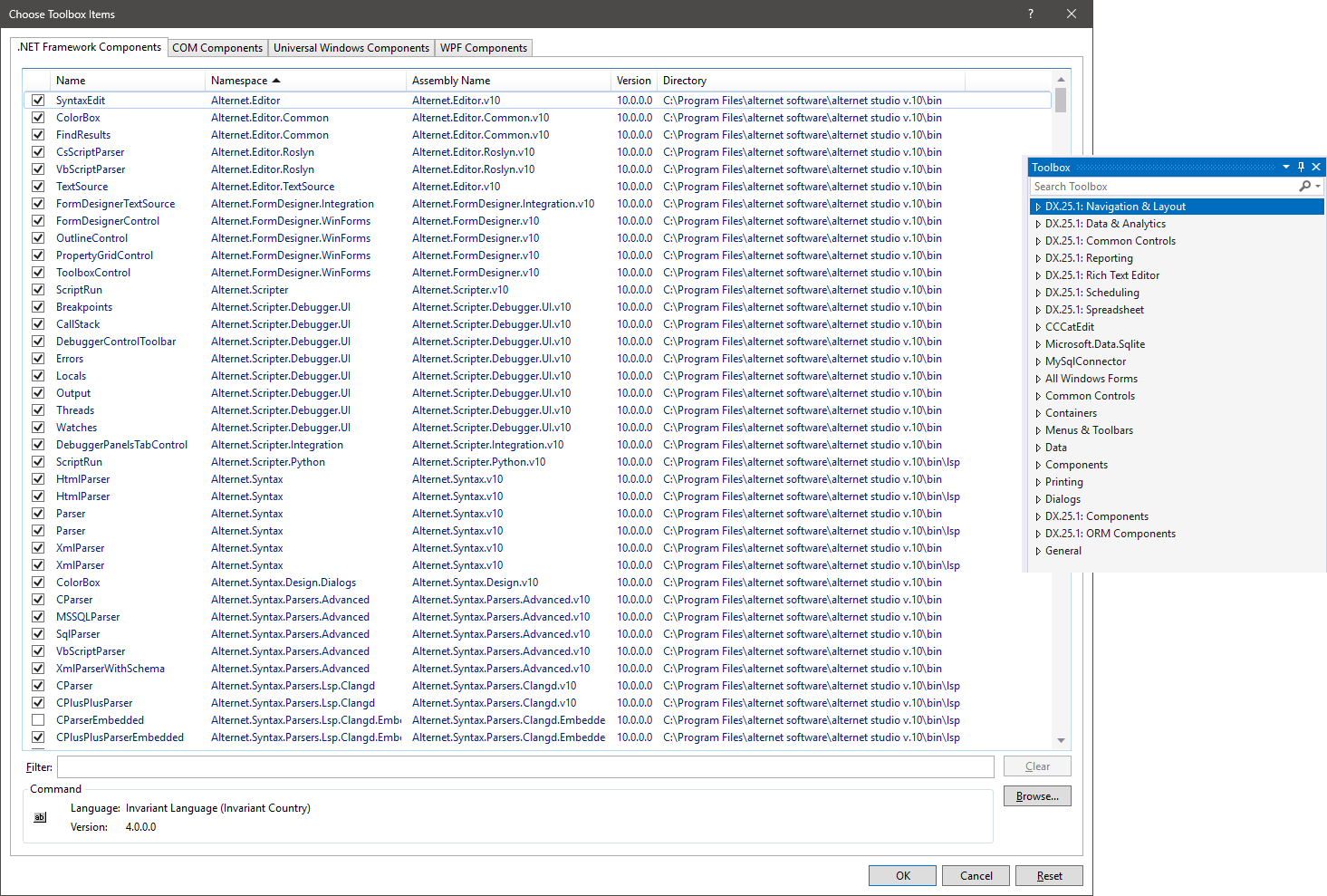
Just installed Alternet 10 Studio eval. The demos will open and run in VS2022 but the controls will not show in the toolbox! I’ve restarted Visual Studio. I Reset the toolbox based on a suggestion here in this forum. They all show as checked but will not show in the toolbox.
To show component items in the Toolbox for projects targeting .NET 6 or later, add the corresponding NuGet packages to your project first. To do that, open Project > Manage NuGet Packages, find (for example) Alternet.Studio.Editor.WindowsForms, and add it to the project. SyntaxEdit will then appear in the Toolbox.
.NET Framework
If you are developing an application for the classic .NET Framework (version 4.7-4.8), SyntaxEdit and other Alternet.Studio components usually appear in the Toolbox automatically after installing the demo.
If automatic installation does not occur, you can create a Toolbox tab and add the Alternet.Studio components manually. Right-click the Toolbox, choose Add Tab, and enter a name for the new tab (for example, “Alternet.Studio”). Then right-click the empty area below the tab title and select Choose Items…
In the Choose Toolbox Items dialog, select the .NET Framework Components tab. You can find the Alternet components by namespaces that start with “Alternet.Studio”. If they do not appear in the list, click Browse… and select the appropriate library, for example:
C:\Program Files\AlterNET Software\AlterNET Studio v.10\Bin\Alternet.Editor.v10.dll (this is DLL from the demo installation folder)
Rebuild Toolbox
To rebuild the Toolbox in Visual Studio, close all instances of Visual Studio, open the folder %LocalAppData%\Microsoft\VisualStudio
and delete all .tbd files in the 17.0 subfolders. When you restart Visual Studio, the Toolbox items will be rebuilt.